Turn a Twitch VOD into a week of clips
Paste the link. The AI watches the whole broadcast, finds what's actually worth clipping, and hands you back captioned, vertical, ready-to-post shorts — no scrubbing through hours of footage yourself.
How it works
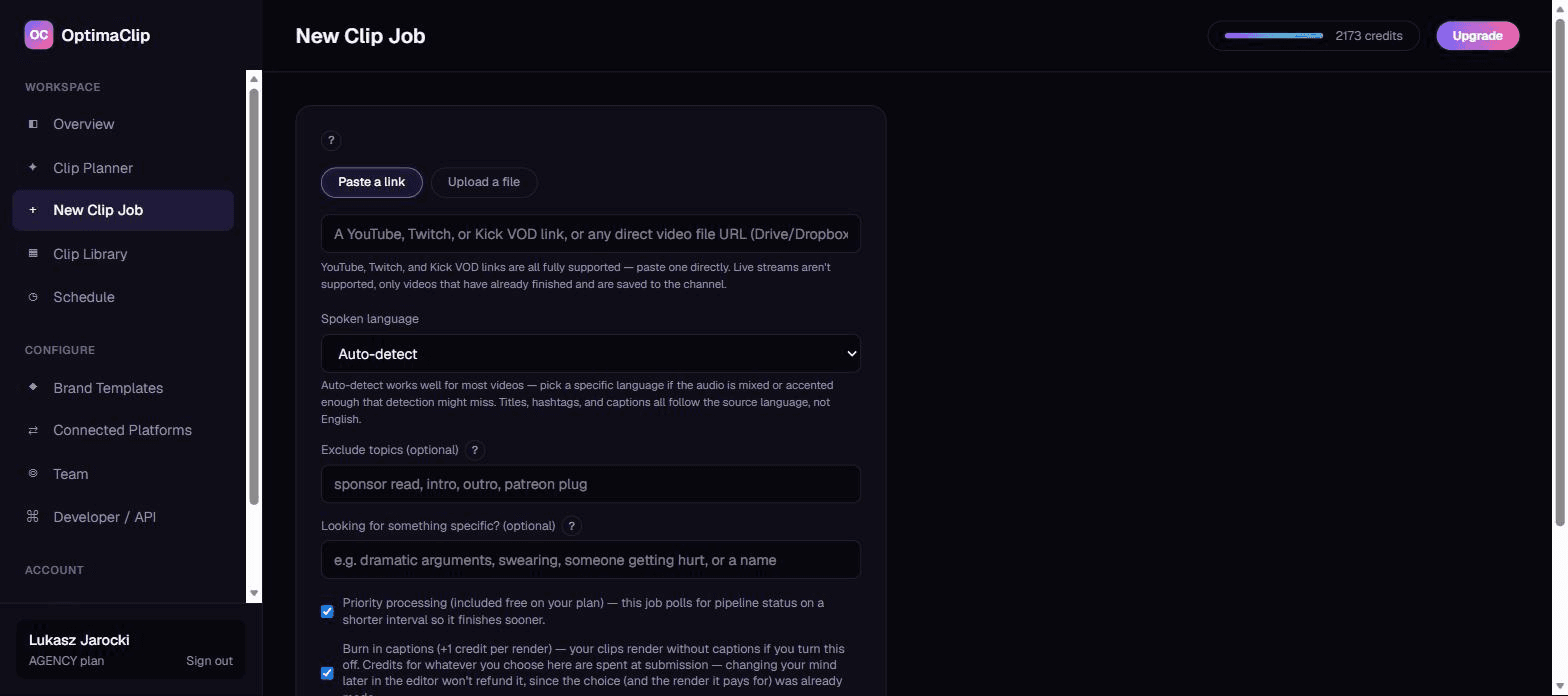
Paste your VOD link
Grab the link to any finished Twitch VOD from your channel — no download, no export from Twitch Studio first. Live streams aren't supported yet; the broadcast needs to have ended and saved to your channel.
The AI watches the whole thing
OptimaClip transcribes the full VOD and reasons over it for hooks, clutch plays, funny reactions, rants, and teaching moments — not just whatever got the loudest chat spam. Tell it what you're after ("funny fails", "someone getting mad", a co-streamer's name) and it prioritizes matches.
Vertical clips come out captioned
Every clip is reframed to 9:16, captioned in your chosen font and style, and scored for how likely it is to actually perform — with a plain-English reason why. Export, or schedule straight to TikTok, Shorts, and Reels from the same dashboard.
Built for how streamers actually clip
Clutch plays and rage moments
The AI moment-search field finds exactly what you're describing — "a clutch ace", "chat going insane", "rage quit" — instead of you scrubbing an 8-hour VOD by hand.
Stay in frame while you move
Smart Reframe follows the visual subject through the clip instead of a fixed center-crop — useful for IRL streams, just-chatting segments where you gesture around, or any setup where you're not glued to one spot on screen.
A whole VOD's worth of clips at once
Submit a 3-hour stream once and get back a full library of standalone clips, each with its own title, hashtags, and virality score — not one clip at a time.
Publish everywhere, from the same dashboard
Twitch clipping FAQ
Does this work with live Twitch streams?
No — only VODs that have already finished streaming and are saved to your channel. Submitting a link to a currently-live channel won't work; wait until the broadcast ends.
Do I need to download the VOD myself first?
No. Paste the twitch.tv/videos/... link directly into New Clip Job and OptimaClip pulls the video in as a source automatically.
What if my VOD is really long?
That's exactly what this is for — the AI scales how many clips it looks for based on the video's actual length, so a 4-hour stream gets a proportionally larger set of candidates than a 15-minute one, not a flat count regardless of length.
Which plan do I need?
Twitch VOD import is available on the Creator plan and higher. The Starter plan supports direct file uploads and YouTube links.
More questions? Read the full FAQ, or check the Kick Clip Maker page if that's where you stream instead.
Guides: streamers & gaming
- How to Clip on Twitch (and Turn Those Clips Into TikToks and Shorts)
- Best AI Clipping Tools for Streamers in 2026: What Actually Matters
- Facecam and Gameplay Layouts for Vertical Clips: Stacked, Split and Picture-in-Picture
- How to Auto-Caption Short Clips from a Livestream: Best Tools and Workflows
- How to Edit a Kick Clip Into a TikTok (Step by Step, 2026)
- How to Make a Kick Highlight From a Stream (Clips, Montages and Shorts)
- AI Highlight Reel Generator for Stream VODs: How to Turn Hours of Footage into Viral Clips
- Best Alternatives to OpusClip for Gaming Streamers: Finding the Right AI Clipping Tool
The whole price list
1 credit = 1 minute of video.
Every clip and export is free.
A 10-minute video costs 10 credits — whether the AI finds 3 clips or 15, and however many formats you export. No per-clip fees, no caption fees, no surprise charges. Start with a free 3-day trial: 30 credits, no card needed.
✓ Unlimited AI clips
Every moment the AI finds — free
✓ Every export, free
9:16, 1:1, 16:9, 4:5 — first render of each
✓ Captions included
Animated, 21 languages + auto-detect, brand-styled
✓ Virality score + reasoning
Know why each clip should work
Everything the big tools have — for a fraction of the cost
Clipping, captions, reframing, scheduling and an editor, plus a few things you can't get at OpusClip's price.
AI clip finder with a virality score
Every clip gets a 0–100 score and a one-sentence reason it should work — no black-box guessing.
Animated captions in 21 languages
Brand-styled, single-word pop or classic, custom colors, fonts and positions. Included free on every export.
Curse-word censor
One toggle masks profanity in captions and silences it in the audio — brand-safe clips without an editor.
Find any moment by describing it
Type “the funniest fail” or “every mention of pricing” — search reads the transcript and watches the frames, even in silent video.
Twitch & Kick VOD import
Paste a VOD link and get the highlights. Streamers and clip channels are first-class here.
Highlight Reels
Auto-stitch every matching moment into one compilation clip. No manual stitching.
Studio: edit by chatting
A full timeline editor driven by AI chat — transitions, music, sound effects, text, your own footage, voice-over. Replaces the CapCut round-trip.
Smart Reframe with face tracking
The crop follows the main speaker's face across the clip, so wide video becomes vertical with the person always in frame.
Premiere Pro & DaVinci Resolve export
Download an edit list (EDL) and SRT captions for any clip and open the cut in your editor. Free on every plan.
AI voice-over
Type text, pick a voice, and drop natural narration onto your Studio timeline. 1 credit per voice-over, paid plans.
AI dubbing in 17 languages
Re-voice any finished clip in another language. 10 credits per minute of video, charged only when the dub finishes; paid plans.
Post everywhere, on a schedule
Built-in scheduling to YouTube Shorts, TikTok, Instagram, Facebook, X, Threads, LinkedIn and Bluesky.
Developer API on Creator
Automate clipping from Zapier, n8n or your own code — API access starts at $39/mo, not a custom enterprise quote.
Teams & client workspaces
Seats, roles, brand templates per client. Agency-ready without the enterprise price tag.